If you've just unboxed your new hearing aids, the first hurdle feels bigger than it probably is: pairing them to your phone. The good news is that Bluetooth pairing is one of the easiest setup steps in the entire hearing aid process — and it's the gateway to hands-free calls, TV audio streaming, and music coming directly into your ears.
This guide walks you through the exact steps for both iPhone and Android, plus troubleshooting tips for when something doesn't go right the first time.
Before You Start: What You Need
A few quick checks before you begin pairing:
- Fully charged hearing aids. Bluetooth pairing drains battery, so start with a full charge.
- Bluetooth turned on. Make sure your phone's Bluetooth is active in Settings.
- iOS 16 or later (iPhone) or Android 10 or later (Android). Most hearing aids built after 2019 work with these versions.
- Phone and hearing aids within a few feet. Proximity helps the pairing process recognize each other faster.
iPhone (iOS): Step-by-Step Pairing
- Open Settings on your iPhone. Tap the gear icon.
- Tap Accessibility. This is where all hearing device connections live on iOS.
- Tap Hearing Devices. Your iPhone will start searching for compatible hearing aids nearby.
- Open your hearing aid charging case. This wakes the hearing aids and puts them into pairing mode. Wait a few seconds for them to appear on your iPhone screen under "Available Devices."
- Tap the name of your hearing aids. The name appears (e.g., "John's Hearing Aids" or "Panda Air Right"). A dialog box will pop up asking you to pair.
- Tap Pair. You may need to confirm pairing twice — once for each hearing aid (left and right). That's normal.
- Adjust volume from Control Center. Once paired, open Control Center (swipe down from the top right of your screen). You'll see a hearing aid volume slider. Test it with a phone call or music.
That's it — your hearing aids are paired to your iPhone. The next time you turn on your hearing aids, they'll automatically reconnect to your phone without any extra steps.
Android: Step-by-Step Pairing
Android pairing works slightly differently depending on your phone's manufacturer, but the core steps are the same for ASHA-compatible hearing aids (most Bluetooth models from 2019 onward).
- Open Settings on your Android phone. Tap the gear icon.
- Tap Accessibility (or Connected Devices). On some phones, go to Settings > Accessibility > Hearing Devices. On others, tap Connected Devices > Pair New Device.
- Make sure Bluetooth is turned on. Bluetooth must be active for your phone to find your hearing aids.
- Open your hearing aid charging case. This activates pairing mode. Your hearing aids should appear in the list of available devices within 10 seconds.
- Tap the name of your hearing aids. Select them from the list of detected devices.
- Tap Pair (or Connect). If you have two hearing aids, you'll need to pair each one separately.
- Adjust volume via the volume rocker or app. Once paired, test the connection by making a call or playing music. Use your phone's volume rocker to adjust.
Your hearing aids are now connected to your Android phone. They'll reconnect automatically each time you turn them on and Bluetooth is active.
Streaming Audio (Calls, TV, Music)
Once your hearing aids are paired, audio streams automatically. That means:
- Incoming phone calls play directly in your hearing aids. You can answer and speak without holding your phone to your ear.
- TV audio streams to your hearing aids if your TV supports Bluetooth or you use a compatible streaming adapter.
- Music and podcasts from Spotify, Apple Music, or any audio app come straight into your ears at the volume you set.
You control the volume from your phone's volume buttons, Control Center (iPhone), or your hearing aid's app if one is available.
Troubleshooting Common Issues
Hearing aids aren't appearing in the available devices list?
First, make sure Bluetooth is on. Second, fully charge your hearing aids and try again — low battery can prevent pairing. If they still don't show up, turn your hearing aids off and back on (or open and close the battery door if they use disposables), then wait 10 seconds for them to reappear.
Hearing aids won't stay paired?
Disconnect your hearing aids from your phone's Bluetooth menu and "forget" them. Then restart your phone completely, turn your hearing aids off and back on, and re-pair them as if it's the first time. This resolves most unstable connection problems.
Audio coming in only one ear?
This often happens when your body or the phone's position blocks the Bluetooth signal to one hearing aid. Move your phone away from your chest or the affected ear. If that doesn't work, disconnect and re-pair both hearing aids.
Choppy audio or cutting in and out?
Move closer to your phone to strengthen the Bluetooth signal. If you're near a Wi-Fi router or microwave, move away — they can interfere. Rechargeable hearing aids with low battery also experience dropout; charge them fully and try again. If the problem persists after updating your phone's operating system, check your hearing aid manufacturer's website for a firmware update.
Phone calls dropping or not connecting?
Check that your phone's operating system is fully updated. Apple and Google regularly release updates that fix Bluetooth audio bugs. Next, check your hearing aid manufacturer's app or website for firmware updates specific to your hearing aid model.
How Panda Air and Panda Quantum Handle Bluetooth
Panda Air ($299, was $399 - save $100) connects to both iPhone and Android seamlessly. Its earbud-style design makes pairing feel natural if you've ever set up AirPods. Once paired, calls and music stream directly to your ears. The Panda Air also includes an optional companion app that lets you fine-tune sound settings without leaving your home.
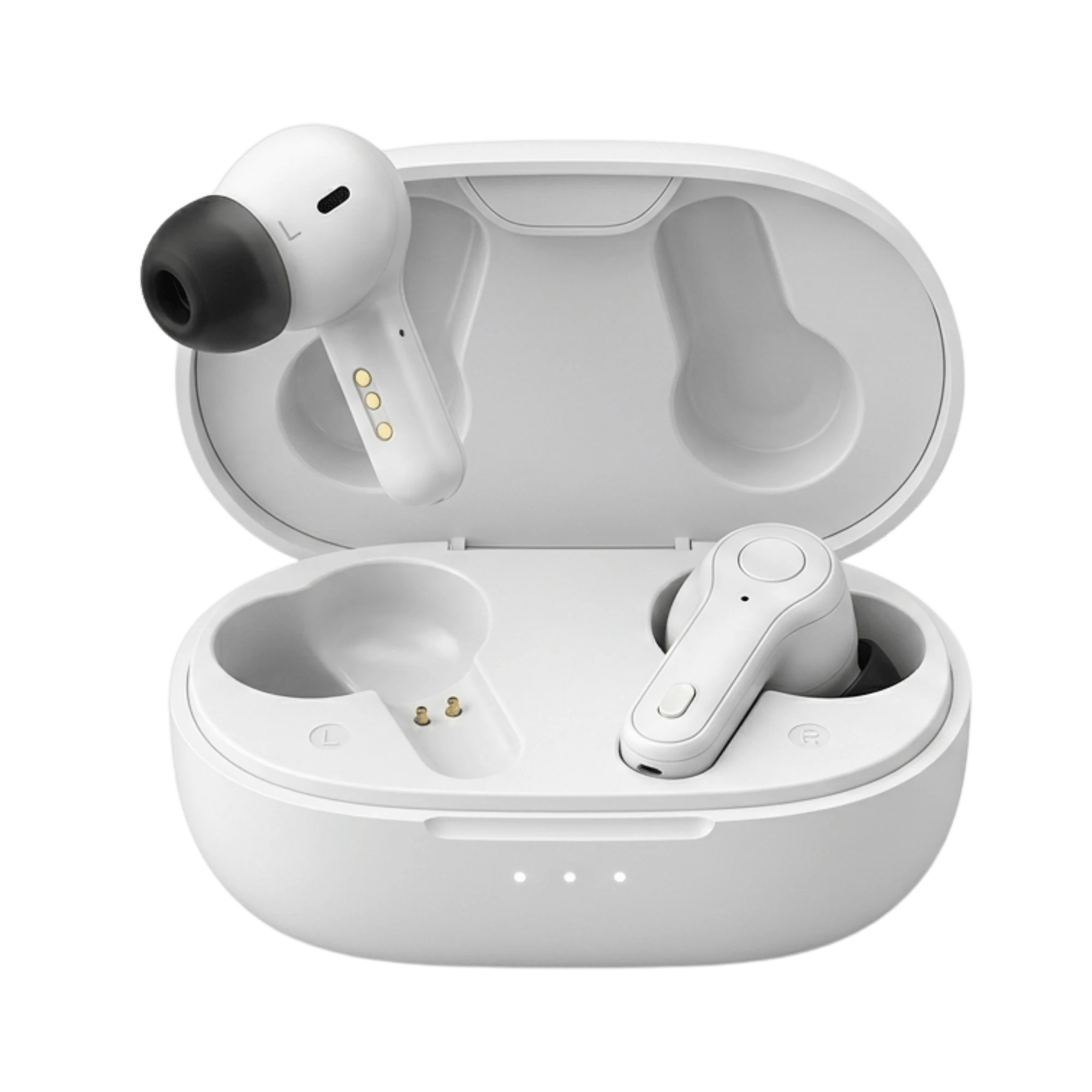
Panda Quantum ($349, was $499 - save $150) offers the same Bluetooth pairing process, but with clinical-grade performance. Its 16-channel frequency-matching system is designed for users with moderate to significant hearing loss. Quantum pairs to iPhone and Android using the same methods described above, and the optional companion app gives you granular control over each hearing aid's sound.

Both are FDA-OTC certified and designed for users who want to skip the clinic visit and handle setup at home.
Why Panda Stealth Doesn't Have Bluetooth
Panda Stealth ($279, was $379 - save $100) is designed for users who prioritize invisibility and simplicity above all else. It intentionally skips Bluetooth to deliver an ultra-discreet fit that disappears completely into your ear canal. For users who value privacy and don't stream audio often, Stealth's three listening modes (Quiet, Noisy, Outdoor) and charging-case remote control deliver a streamlined experience without the complexity of phone pairing.
Bottom Line on Bluetooth Setup
If you can pair AirPods or any wireless earbuds to your phone, you can pair Bluetooth hearing aids. Both Panda Air and Panda Quantum are engineered for first-time users — the pairing process is built to be obvious, and if something goes wrong, a quick restart usually fixes it. You're a few clicks away from hearing calls, TV, and music come straight through your hearing aids, hands-free.
Frequently Asked Questions
Can I pair my hearing aids to two phones at once?
Yes. Both Panda Air and Panda Quantum can pair to multiple Apple devices (iPhone, iPad, Mac) simultaneously, and they'll intelligently switch to whichever device you're using. If you want to pair them to both an iPhone and Android phone, you'll need to unpair from one and re-pair to the other — most hearing aids only maintain active pairing with devices on the same operating system at once.
Why won't my hearing aids stay paired to my phone?
Usually it's a software issue. Update your phone's operating system to the latest version, then check your hearing aid manufacturer's app for any firmware updates. If the problem persists, go to your phone's Bluetooth settings, tap "Forget" on your hearing aids, restart your phone, and re-pair them from scratch. This resolves most intermittent disconnection issues.
Do all hearing aids work with both iPhone and Android?
Most modern hearing aids built after 2019 support both. iPhone uses Apple's MFi (Made for iPhone) standard, and Android uses ASHA (Audio Streaming for Hearing Aids). Panda Air and Panda Quantum support both, so you can pair them to either phone type. Older hearing aids or some specialty models may use classic Bluetooth, which has broader compatibility but fewer streaming features.
How do I unpair and re-pair my hearing aids?
iPhone: Go to Settings > Accessibility > Hearing Devices, tap your hearing aids, then tap "Forget This Device." To re-pair, open the charging case, go back to Hearing Devices, and tap the hearing aids when they appear. Android: Go to Settings > Connected Devices (or Accessibility > Hearing Devices), tap your hearing aids, then tap "Unpair." To re-pair, restart your phone, open the charging case, and pair them again from the same menu.
Ready to Pair?
Pairing Bluetooth hearing aids to your phone is one of the easiest wins in modern hearing care. You're not paying for a clinic visit or a fitting fee — you're doing it yourself in 2 minutes from your home. That's why Panda Air and Panda Quantum are built for people who want to hear their phone calls, TV, and music clearly without the medical-grade complexity. Both are designed for self-fitting at home, and their customer support team is standing by if you hit a snag.